

Connection problems on Richmond Rental usually trace back to three quick fixes: clearing your browser cache, checking your internet stability, or logging out and back in. Before diving deeper, run this 30-second test: open a different website in a new tab. If it loads instantly, the issue sits with Richmond Rental’s platform or your account settings, not your internet connection.
Most connection errors appear as infinite loading screens, failed login attempts, or pages that partially load but won’t let you book or message property owners. These frustrations spike during peak browsing hours when our community of filmmakers, event planners, and property owners are most active on the platform. The good news? Nearly 80% of connection issues resolve with browser-based fixes you can handle right now, without any technical expertise.
This guide walks you through the troubleshooting process in order of speed and success rate. We’ll start with the fastest solutions that work for most users, then move into account-specific fixes, and finally cover when to reach out to our support team. Connection problems shouldn’t keep you from discovering that perfect industrial loft for your shoot or the rooftop venue your client envisions. Let’s get you back to browsing, booking, and connecting with our creative community.
Is Your Connection Actually Broken? Quick Symptom Check
Before you dive into fixes, take a moment to pinpoint exactly what’s happening. Connection problems aren’t one-size-fits-all, and identifying your specific symptom will save you time and get you back to booking unique spaces faster.
Start by asking yourself what actually fails when you try to use Richmond Rental. The platform has several moving parts, and different symptoms point to different underlying issues. Here’s what connection troubles typically look like:
- Login failures: You enter your credentials but get error messages, infinite loading, or just bounce back to the login screen
- Pages won’t load: Richmond Rental’s homepage or search results stay blank, display partially, or show a timeout error
- Booking requests vanish: You click to request a space but nothing happens, or you get a spinning wheel that never completes
- Messaging doesn’t work: Your messages to hosts or responses to users won’t send, or conversations won’t load
- Listings disappear: Search results come up empty when you know spaces should be available, or specific listings won’t open
- Images or features missing: The site loads but photos don’t appear, filters don’t work, or buttons do nothing when clicked
Pay attention to whether the problem happens every time or just occasionally. If it’s intermittent, note what you were doing when it failed. Were you switching between sections of the site? Uploading photos? Trying to complete a payment?
Also check if the issue affects only Richmond Rental or other websites too. Open a few different sites in the same browser. If they all struggle, your internet connection might be the culprit rather than Richmond Rental itself. If only Richmond Rental acts up, you’re dealing with something platform-specific.
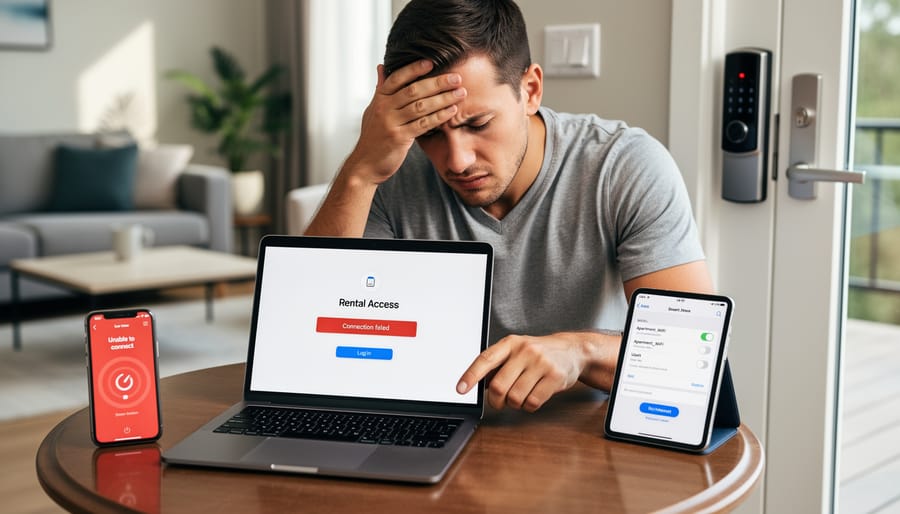
What’s Really Causing Your Connection Problem
Most connection problems on Richmond Rental stem from a handful of common culprits. Understanding what’s behind your issue helps you fix it faster and avoid wasting time on solutions that won’t work for your specific situation.
Your internet connection is the most frequent offender. If your Wi-Fi signal is weak, your router needs a reset, or your internet service provider is having issues, Richmond Rental won’t load properly no matter how well the platform itself is working. This affects everything from browsing listings to sending messages, and it’s often the first thing to check.
Outdated or incompatible browsers create surprising headaches. Richmond Rental’s platform uses modern web technologies that older browser versions can’t handle. If you’re using a browser that hasn’t been updated in months, certain features might not work at all. Safari users on older macOS versions and people still running Internet Explorer face the most compatibility issues.
Cached data and cookies build up over time and can conflict with Richmond Rental’s current code. Your browser stores temporary files to speed up loading, but when Richmond Rental updates its platform, those stored files sometimes clash with the new version. This causes bizarre behaviors like buttons that don’t respond or pages that load incorrectly.
Account authentication problems happen when your login session expires or gets corrupted. You might appear logged in, but the platform can’t verify your credentials properly. This blocks you from booking spaces, messaging hosts, or accessing your account settings even though you’re technically signed in.
| Cause | Common Symptoms | Likelihood | Fix Difficulty |
|---|---|---|---|
| Internet connectivity | Pages won’t load, timeouts, slow performance across all features | Very High | Easy |
| Browser compatibility | Buttons don’t work, forms won’t submit, images missing | High | Easy |
| Cached data conflicts | Outdated content, login loops, pages display incorrectly | High | Very Easy |
| Authentication errors | Can’t access account features, bookings fail, messaging broken | Medium | Easy |
| Platform maintenance | Intermittent unavailability, slow response times | Low | Just wait |
| Security software interference | Specific features blocked, payment processing fails | Low | Moderate |
Scheduled platform maintenance occasionally takes Richmond Rental offline or slows performance temporarily. The platform team announces these windows in advance, but you might miss the notification and wonder why things aren’t working.
Firewall or security software sometimes blocks Richmond Rental’s features by mistake. Antivirus programs, VPNs, or corporate network security can flag certain platform functions as suspicious and prevent them from running. This particularly affects payment processing and file uploads when listing a space.
Step-by-Step: Fixing Your Richmond Rental Connection
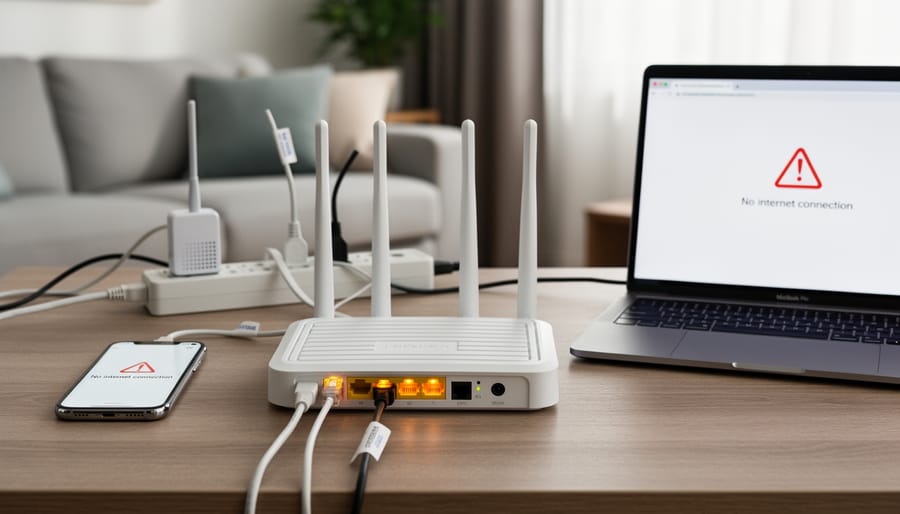
Fix #1: Check Your Internet Connection
Before diving into Richmond Rental-specific fixes, make sure your internet connection itself is working. A shaky or dropped connection will cause problems on any platform, and it’s the quickest thing to rule out.
Here’s how to check:
- Open a new browser tab and visit a few unrelated websites, news sites, social media, or a search engine. If those don’t load either, the problem is your internet, not Richmond Rental.
- If you’re on Wi-Fi, move closer to your router or switch to a wired connection if possible. Weak signals often cause intermittent connectivity issues.
- Restart your router by unplugging it for 30 seconds, then plugging it back in. Wait a couple of minutes for it to fully reboot before testing Richmond Rental again.
- Check if other devices on your network are online. If your phone or tablet can browse the web while your computer can’t, the issue is device-specific rather than network-wide.
Once you’ve confirmed your internet is stable and working across multiple sites, you can move on to troubleshooting Richmond Rental directly. Most connection problems stem from this first layer, so it’s worth spending a minute here before trying more complex fixes.
Fix #2: Clear Your Browser Cache and Cookies
Outdated cached data often creates conflicts that prevent Richmond Rental from loading properly. When your browser stores old versions of pages, forms, or scripts, they clash with the platform’s current features. Clearing this stored data resolves most loading and functionality issues.
Here’s how to clear cache to fix login problems and other conflicts in each major browser:
- Chrome: Press Ctrl+Shift+Delete (Windows) or Cmd+Shift+Delete (Mac). Select “All time” as the time range, check “Cookies and other site data” and “Cached images and files,” then click “Clear data.”
- Safari: Go to Safari menu, select Preferences, click Privacy tab, then “Manage Website Data.” Search for Richmond Rental or click “Remove All” for a complete refresh.
- Firefox: Press Ctrl+Shift+Delete, choose “Everything” from the time range dropdown, select “Cookies” and “Cache,” then click “Clear Now.”
- Edge: Press Ctrl+Shift+Delete, select “All time,” check both “Cookies and other site data” and “Cached images and files,” then click “Clear now.”
After clearing your cache, close the browser completely and restart it before returning to Richmond Rental. This fresh start eliminates any lingering cached conflicts and gives you a clean connection to the platform.
Fix #3: Try a Different Browser or Device
Sometimes Richmond Rental works perfectly fine, just not in the browser you’re currently using. Browser-specific quirks, outdated versions, or conflicting extensions can block features that work smoothly elsewhere.
To test this, open Richmond Rental in a different browser. If you’re on Chrome, try Firefox or Safari. The platform loads normally? Your original browser is the culprit. Update it or stick with the working alternative for now.
Switch devices if you can. Check Richmond Rental on your phone if you’ve been using a laptop, or vice versa. A successful connection on another device confirms the problem sits with your primary setup, not Richmond Rental’s servers. This simple test saves hours of troubleshooting dead ends and points you toward the real fix.
Fix #4: Log Out and Back In
Sometimes Richmond Rental’s authentication system just needs a fresh start. Logging out completely and signing back in clears your session data and re-establishes your connection to the platform, resolving many account-related connectivity issues.
Here’s how to do a clean logout and login:
- Click your profile icon in the top-right corner of Richmond Rental and select “Log Out” from the dropdown menu
- Wait for the confirmation message showing you’ve signed out, then close all Richmond Rental browser tabs
- Clear your browser’s cookies specifically for richmondental.com (not your entire cache) through your browser’s privacy settings
- Wait 30 seconds to ensure the session fully terminates on Richmond Rental’s servers
- Open a fresh browser window and navigate to Richmond Rental’s homepage
- Click “Log In” and enter your credentials carefully, double-checking for typos
This process forces Richmond Rental to create a new session token and verify your account status from scratch. If you’re still having trouble after logging back in, the issue likely isn’t authentication-related, move on to the next fix. For mobile app users, the process is similar: tap your profile, select logout, force-close the app completely (swipe it away from your recent apps), wait a moment, then reopen and log in again.

Fix #5: Disable VPN or Security Software Temporarily
Sometimes your VPN or security software blocks certain features on Richmond Rental, mistaking legitimate platform functions for suspicious activity. If you’re using a VPN, turn it off and reload the Richmond Rental page to see if your connection stabilizes. Most VPN apps have a simple on/off toggle in the system tray or menu bar.
Browser extensions like ad blockers, privacy tools, or security add-ons can also interfere with how Richmond Rental loads. Disable these extensions temporarily by accessing your browser’s extension manager. In Chrome, click the three dots menu, select Extensions, then toggle off each extension one at a time. Test Richmond Rental after disabling each one to identify the culprit.
If disabling your VPN or extensions fixes the problem, you can usually add Richmond Rental to your security software’s whitelist or allowlist. This lets you keep your protection active while ensuring the platform works smoothly. Check your security software’s settings for options like “Trusted Sites” or “Exceptions” where you can add richmondvenues.com or whatever the Richmond Rental domain is.
Fix #6: Update Your Browser or App
Outdated browsers or apps often struggle with modern web platforms that use the latest security protocols and features. Richmond Rental continuously updates its platform, and older software versions may not support these improvements.
To update your browser, open settings and look for “About” or “Help”, most browsers check for updates automatically and prompt you to restart. Chrome users find this under the three-dot menu > Help > About Google Chrome. Safari updates through macOS System Preferences > Software Update. Firefox checks via the menu icon > Help > About Firefox.
If you’re using the Richmond Rental mobile app, visit your device’s app store (Apple App Store or Google Play Store), search for Richmond Rental, and tap “Update” if available. Enable automatic updates in your app store settings to prevent future compatibility issues.
After updating, restart your device completely to ensure all changes take effect, then try accessing Richmond Rental again.
When to Contact Richmond Rental Support
If you’ve worked through the troubleshooting steps above and your connection issues persist beyond 24 hours, it’s time to reach out to Richmond Rental’s support team. Contact them immediately if you can’t access your account at all, if bookings or payments are stuck in processing, or if error messages appear that you can’t resolve.
When you submit a support request, include specific details: describe exactly what happens when you try to connect, note which browser and device you’re using, mention any error codes or messages you see, and list the fixes you’ve already attempted. Screenshots of the problem help the team diagnose issues faster. You can reach support through the “Help” link at the bottom of any Richmond Rental page or by emailing their team directly. Most connection issues get resolved within one business day once support has the full picture of what’s happening on your end.
Keeping Your Connection Smooth: Prevention Tips
Now that you’ve got your connection back, let’s talk about keeping it that way. A few simple habits can save you from repeating this troubleshooting dance every time you want to book that perfect warehouse space or respond to a rental inquiry.
Keep Your Browser Fresh
Your browser accumulates digital clutter over time, and that clutter can interfere with Richmond Rental’s features. Set a monthly reminder to clear your cache and cookies, think of it as spring cleaning for your browser. Most browsers let you keep your passwords while clearing everything else, so you won’t lose your login details. This one habit prevents most recurring connection problems.
Stay Current with Updates
Software updates aren’t just about new features; they fix bugs and security holes that can block your access to platforms like Richmond Rental. Enable automatic updates for your browser, operating system, and the Richmond Rental app if you use it. Updates often include patches that improve how websites load and communicate with your device.
Understand Maintenance Windows
Richmond Rental occasionally performs scheduled maintenance to improve the platform. These brief periods typically happen late at night or early morning and are announced in advance through email or the platform’s status page. Bookmark Richmond Rental’s status page and check it before assuming there’s a problem on your end. Knowing when the platform is intentionally down saves you unnecessary troubleshooting.
Simple Habits for Consistent Connectivity
- Restart your router once a month to clear network congestion and refresh your connection
- Limit browser extensions to only those you actively use, as some interfere with website functionality
- Use a strong, stable internet connection when submitting booking requests or uploading listing photos
- Keep your login credentials saved securely in your browser or password manager to avoid authentication issues
- Disable VPNs when accessing Richmond Rental unless you’re troubleshooting a specific regional issue
These practices take minimal effort but create a reliable foundation for your Richmond Rental experience. When your connection stays smooth, you can focus on what matters, finding the ideal creative space or welcoming guests to your unique venue. A little preventive care goes a long way toward hassle-free hosting and booking.
Common Questions About Richmond Rental Connectivity
Does Richmond Rental work better on desktop or mobile?
The platform is fully optimized for both, but some users report smoother browsing on desktop when viewing multiple listings with high-resolution photos. Mobile works great for quick messages and booking confirmations on the go.
Are there specific times when Richmond Rental runs slower?
Peak traffic typically occurs during early evenings (5-8pm local time) and Sunday afternoons when people plan upcoming events. You might notice slightly longer load times during these windows, but major slowdowns usually indicate a problem on your end.
Can connection problems stop my booking from going through?
Yes. If your connection drops while submitting a booking request, it might not reach the host. Always wait for a confirmation screen or email before assuming your request was sent successfully.
Will a VPN affect my ability to browse listings?
Most VPNs work fine with Richmond Rental, but some aggressive security settings can interfere with messaging features or payment processing. If you’re having trouble, try disabling your VPN temporarily to see if that resolves the issue.
If you’re still experiencing problems after trying these solutions and reviewing the troubleshooting steps, you’re likely dealing with something beyond typical connectivity hiccups. Richmond Rental’s support team can access platform logs to spot issues you can’t see from your end, whether that’s an account flag, a regional server problem, or something affecting your specific device setup. Don’t hesitate to reach out, they’d rather help you connect smoothly than have you miss out on booking the perfect space.
Key Terms
Understanding these technical terms can help you diagnose and fix connection issues more effectively when using Richmond Rental.
- Cache
- Temporary files stored by your browser to speed up website loading. When outdated, cached data can cause connection problems and prevent Richmond Rental features from working properly.
- Cookies
- Small data files that websites save on your device to remember your login status and preferences. Corrupted cookies can interfere with your ability to access your Richmond Rental account.
- Browser Compatibility
- How well your web browser works with a website’s code and features. Outdated browsers may struggle to display Richmond Rental’s booking tools and messaging system correctly.
- Session Timeout
- The automatic logout that occurs when you’ve been inactive on Richmond Rental for too long. This security feature requires you to sign back in to continue browsing or booking spaces.
- Firewall
- Security software that monitors and controls incoming and outgoing internet traffic. Sometimes firewalls block legitimate connections to Richmond Rental if they mistakenly flag certain features as suspicious.
Familiarizing yourself with these concepts makes troubleshooting faster and helps you communicate more clearly with support staff if you need assistance resolving persistent connection problems.